
Install SE Tracker, Register & Use Your GPS Tracker
PLEASE NOTE: The following instructions are for our Dog, Kids, Lone Worker, Solo Travel and Dementia Tracker. For getting started with your Car Tracker, please scroll to 'Install WhatGPS, Register & Use Your GPS Tracker or click here.
In this guide we're going to give you a 'quick start' step by step, showing you how to install the SE Tracker tracking app, register your tracker and start using it.
By the end of this guide, your tracker will be live and providing up-to-date location data to your smartphone or device.
Before you start: Please charge and turn on your GPS Tracker. To do this press and hold the silver power button. You will hear a tone in increasing pitch. The tracker will flash blue until it finds a GPS signal, when it's working properly, the light will stop flashing.
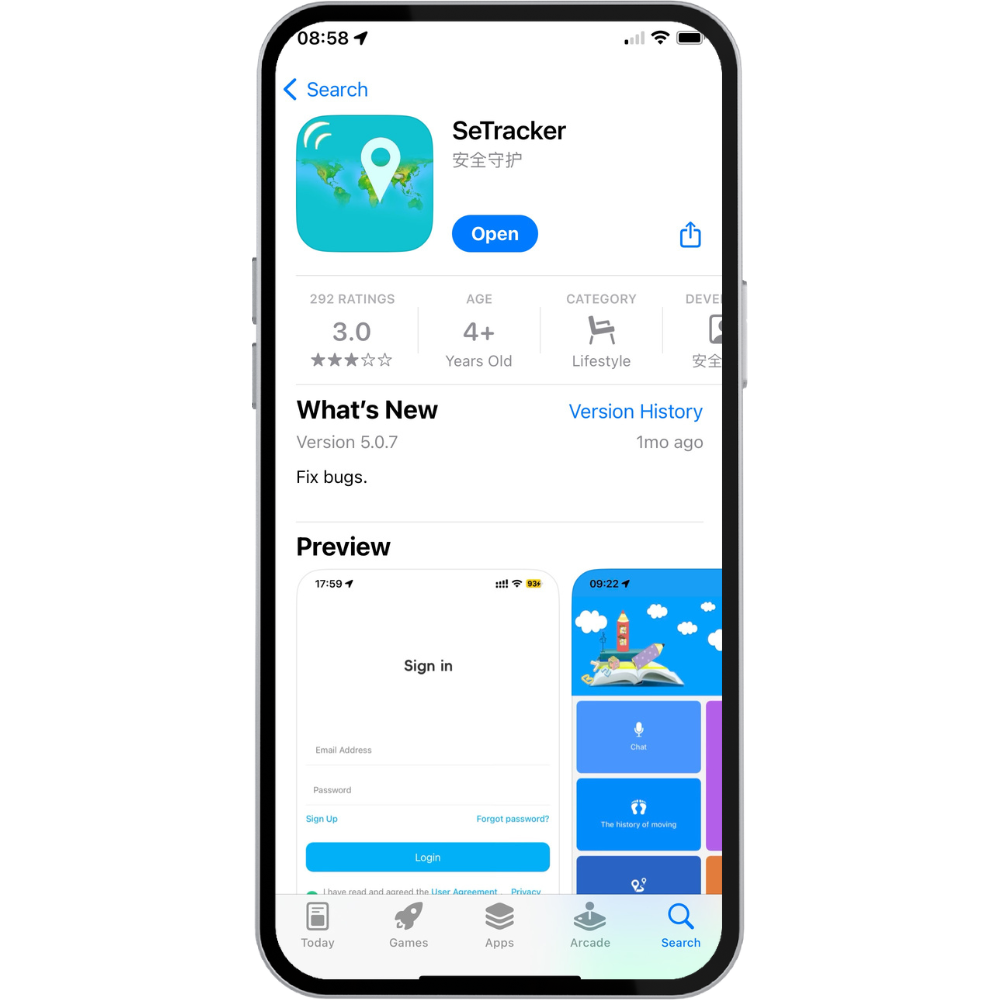
Download The SE Tracker App
Download the SE Tracker App for Android and IOS using the links below:
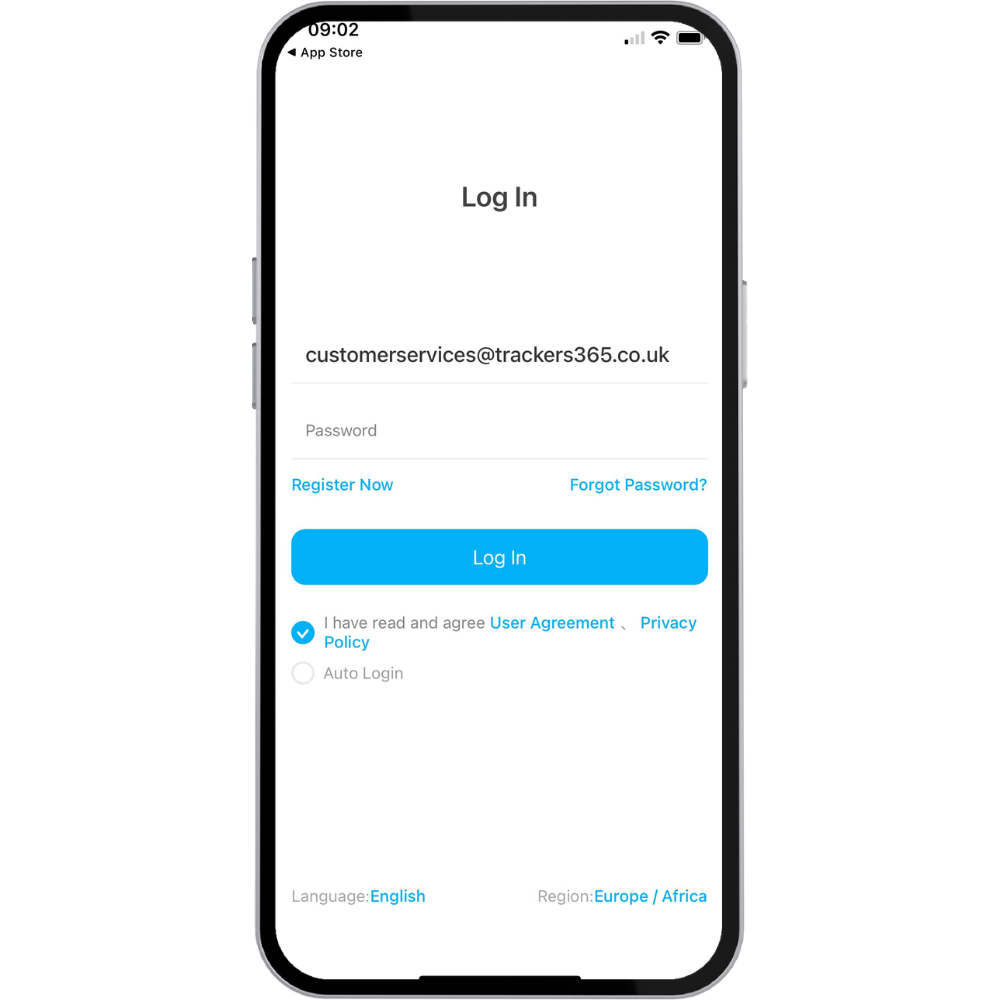
Log In To SE Tracker
Once you've installed the app, click it to launch and log in to SE Tracker.
Click 'Register Now' to create your account. You'll be asked to enter an email address, verification code (provided on the screen) and an 8-16 character password.
Your password needs to include both letters and numbers. We also recommend keeping it all lowercase.
Click 'I have read and agree User Agreement' and then click 'Register'.
If you're struggling to log in using the IMEI number and password, please raise a ticket using our Support Page.
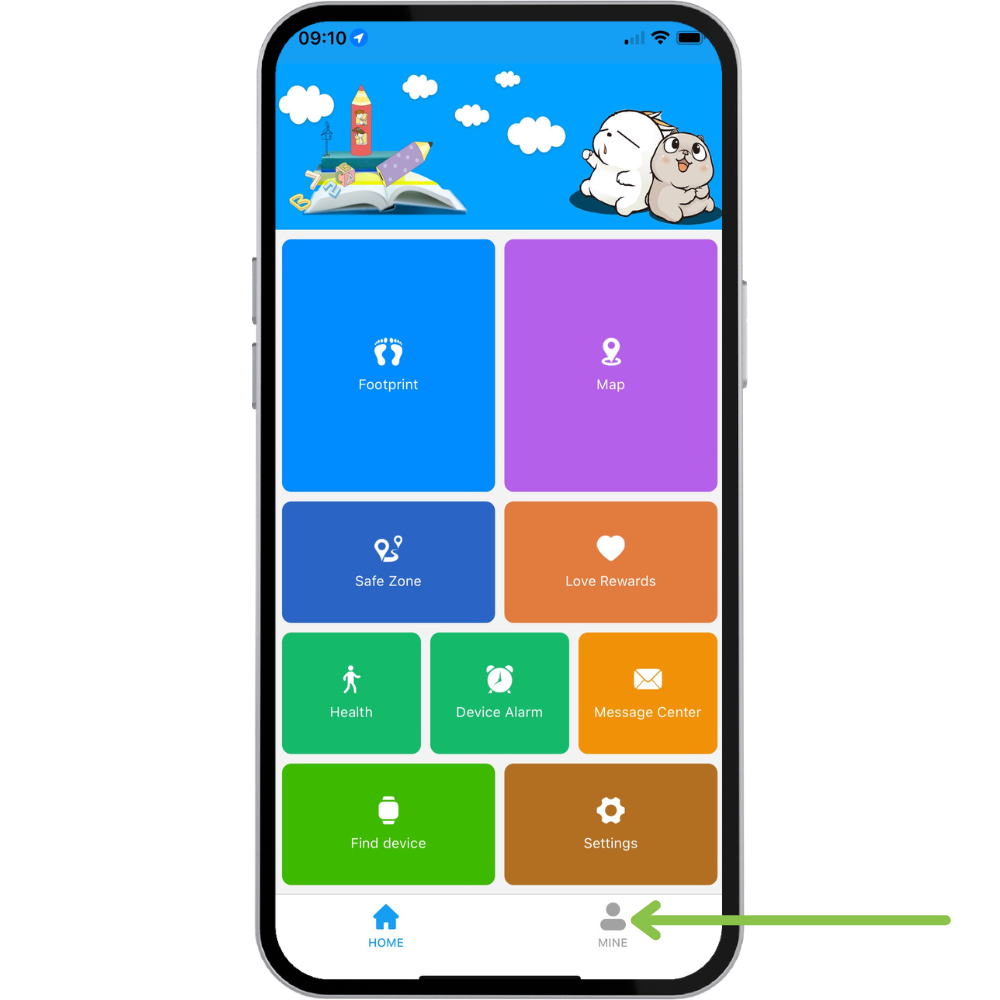
Register Your Tracker
When you first register your account with SE Tracker you may be prompted to register your GPS Tracking device.
If you aren't, from the app home page click 'Mine' or 'Me' to get started (see green arrow).
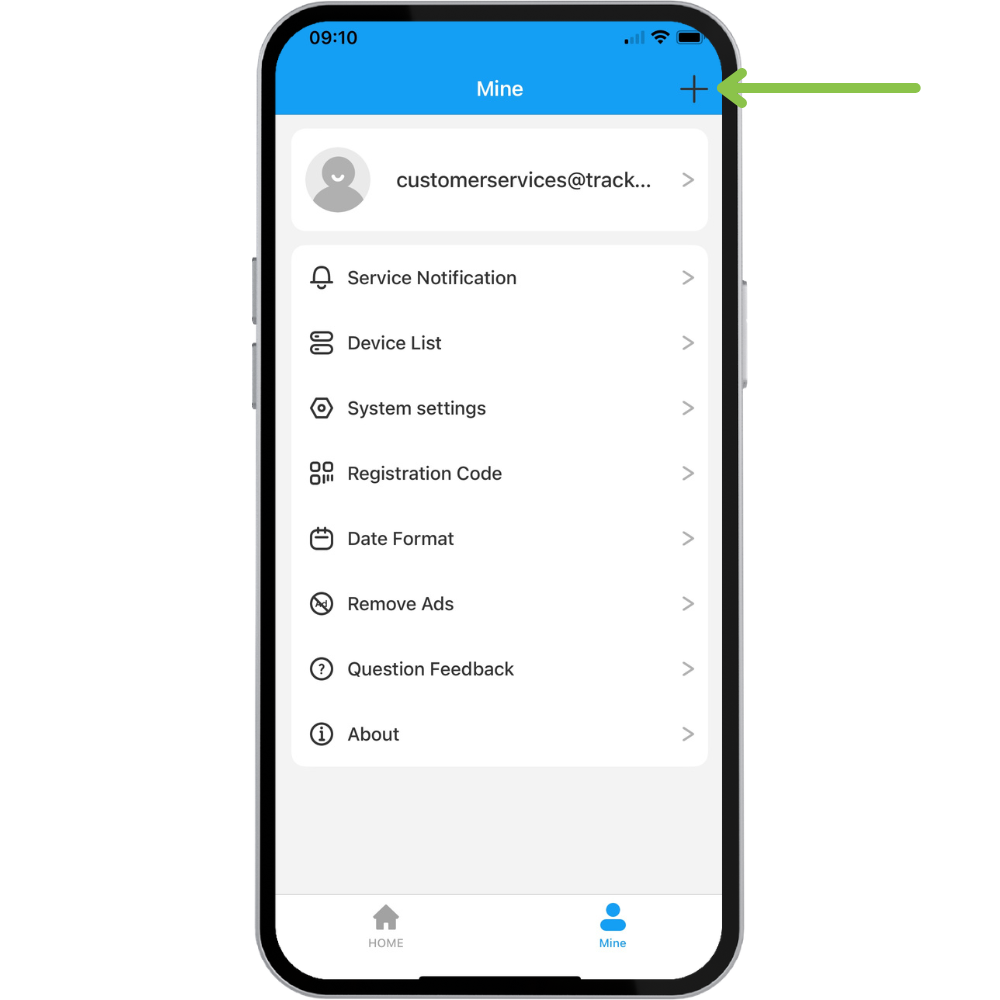
Add Device
From the 'Mine' or 'Me' page (where most app and account settings are) click the '+' icon at the top right of the app screen to register your device.
Scan Device & Name It
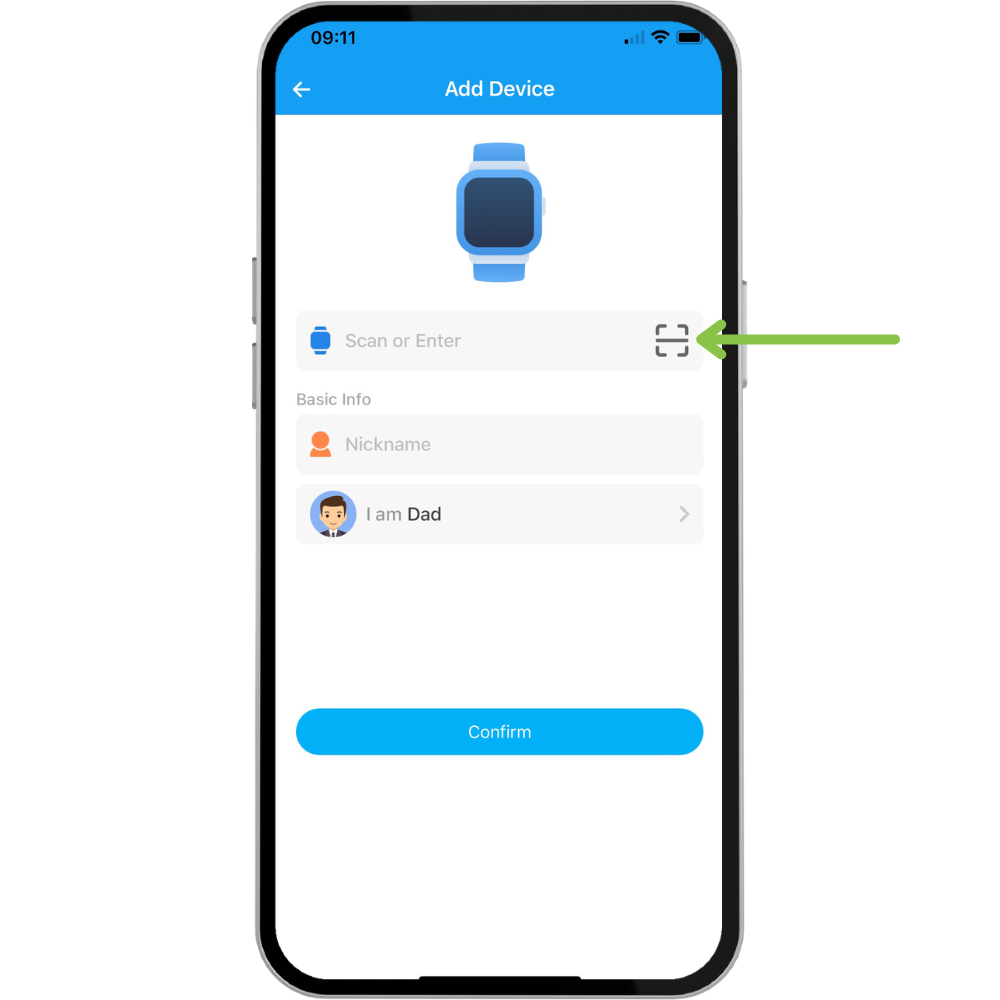
On the Add Device page you can add your GPS Tracker by either scanning the barcode (on the back of your device) or by entering the IMEI number. This can also be found on the back of your device, or via email where we will have updated you with both an IMEI number and ICCID.
Here, you can give your device a 'Nickname' which makes it easier to identify, especially if you're adding multiple devices to one app.
You can also specify your relationship to the device for clarity.
Your Device Is Live
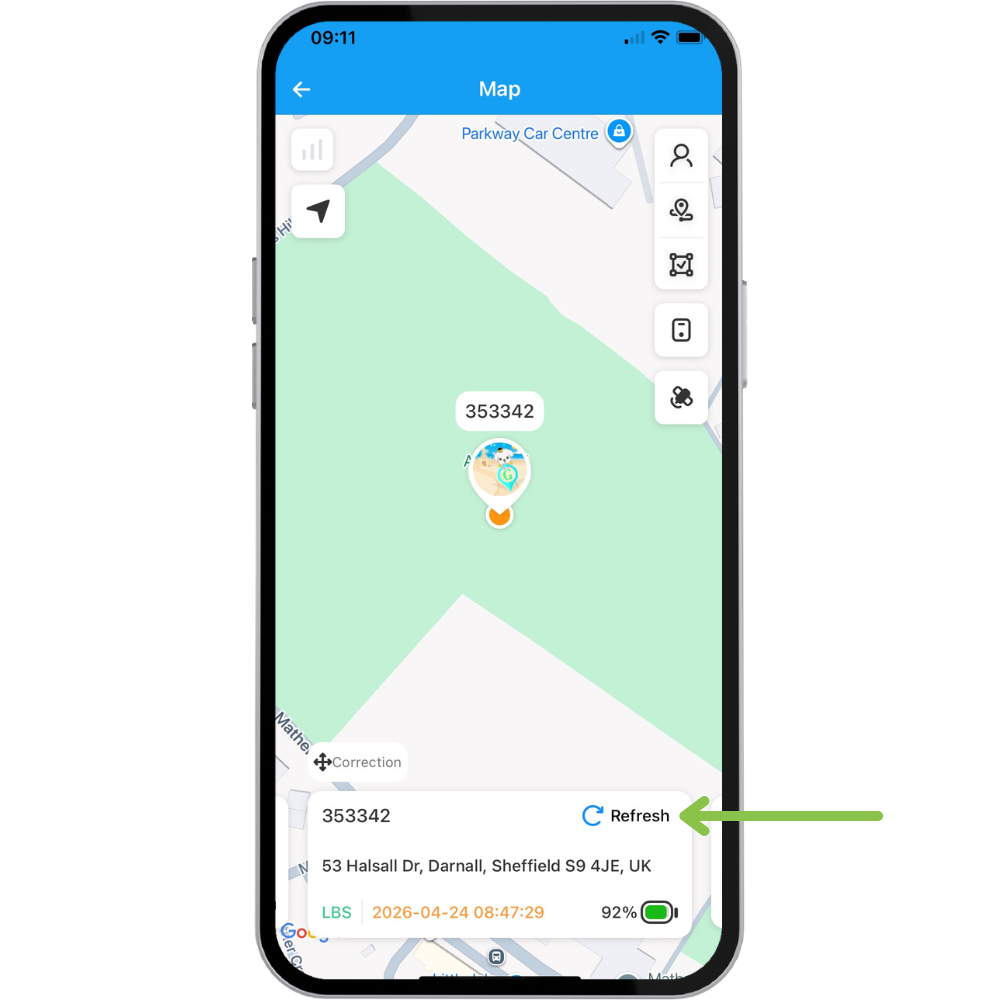
Once you've registered your device, go to the Map (via the app Home Screen), and your device (or devices) will now be showing. You can get a real-time location by clicking the 'refresh' button anytime.
Please note: when registering your device, it may need to be released by our admin team to your account. This can take up to 24 hours.
Car Tracker
Install WhatGPS, Register & Use Your GPS Tracker
In this guide we're going to give you a 'quick start' step by step, showing you how to install the WhatGPS tracking app, register your tracker and start using it.
By the end of this guide your tracker will be live and providing up to date location data to your smartphone or device.
Before you start: Please turn on your GPS Tracker. To do this press and hold the power button for 5 seconds.

Download The WhatGPS App
Download the WhatGPS App for Android and IOS using the links below:

Log In To WhatGPS
Once you've installed the app, click it to launch and log in to WhatGPS.
By default, your log in details will be:
Username: Your device IMEI number
Password: The last 6 digits of your device IMEI number
Your device IMEI number is a unique number (usually 15 digits) which can be found on the back of your GPS Tracking device. We also provide the IMEI number (and password) on the 'Quick Start' card accompanying your tracker.
If you're struggling to log in using the IMEI number and password, please raise a ticket using our Support Page.

(Optional) Reset Your Password
You may be prompted to reset your password. Click 'Modify Password' to load the new password screen.

(Optional) Reset Your Password
On the new password screen, enter your Old password (which may be prefilled), a New password and confirm your New password.
Press the submit button to save your new password.

Your Tracker Is Live
That's it! Your tracker is now live and the location will be shown on the map.
The location is shown by an icon on the map + the device name (in our example; a paw icon and device name ='Test Tracker').
Please note, the icon and device name may differ, depending on the tracker type you have.
To refresh and recheck your GPS Tracker location click the 'recycle' icon (see green arrow). Remember, the more times you refresh the location, the quicker your battery will run out.