
My Device Is Offline
There are a number of reasons why your device may be offline. The most common reasons are:
- Your GPS tracker battery is flat, which gives an offline status on the WhatGPS app
- A period of inactivity, where your GPS tracker hasn't moved (or been outside)
- A connection issue with your GPS tracker, SIM card or the network.
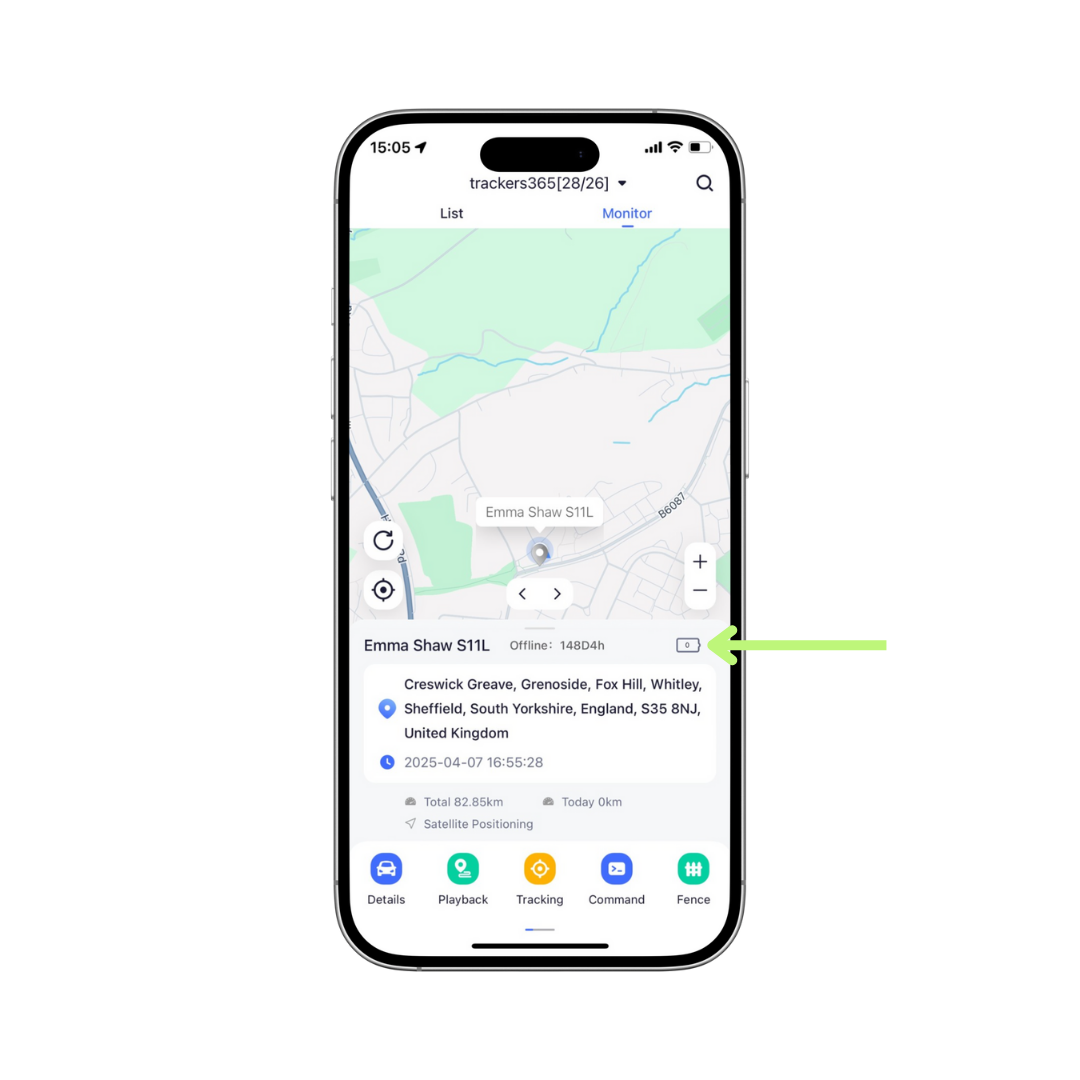
Check The Battery Status Of Your GPS Tracker
Opening the WhatGPS app will bring up your GPS tracker's map and details.
Depending on the version you are using, either visit the Home Page or the Monitor tab and check your battery level (see green arrow).
If the battery level is below 10% this could cause a device offline message. We recommend charging your GPS tracker.
When your GPS tracker is fully charged, take it outside briefly or use it as normal (it may struggle to connect initially if left indoors). If the device is still offline, press and hold the power button for 3+ seconds to switch it on.
Check the device status using WhatPGS.
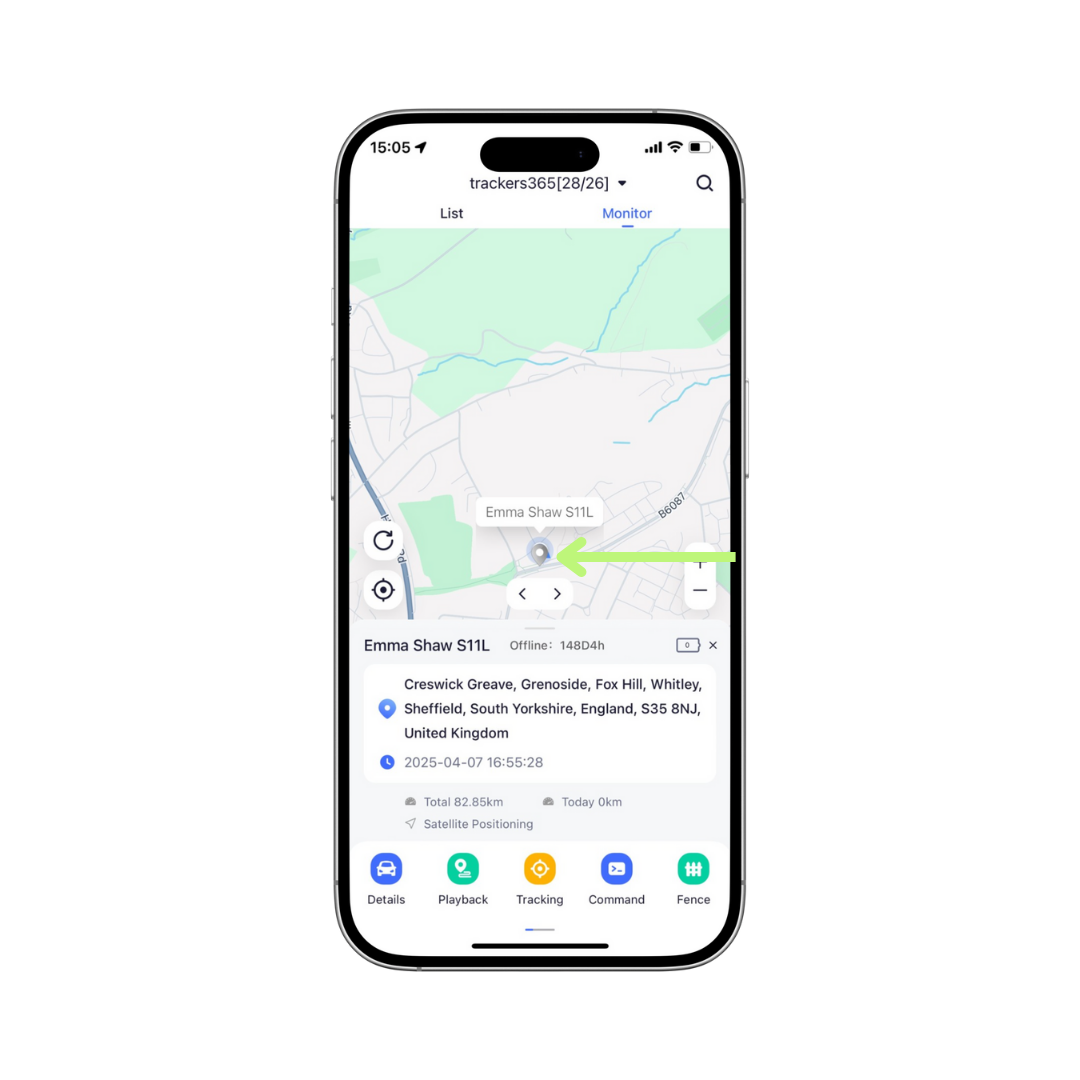
Update The Activity Of Your GPS Tracker
If your GPS tracker is static or inactive for an extended period of time (such as in the home) it will switch to Static Mode, then Offline Mode to save battery (shown by a grey icon, rather than blue- see green arrow).
This is usually the case if your tracker shows some battery level still available on the WhatGPS app.
To get the device back online, use it for a few minutes outside (ideally with movement), allowing the tracker to reconnect to the network.
Please note: your GPS tracker is designed to go on and offline through regular use. It's normal for it to be offline when not in use and automatically reconnect (go online) when you start using it again.
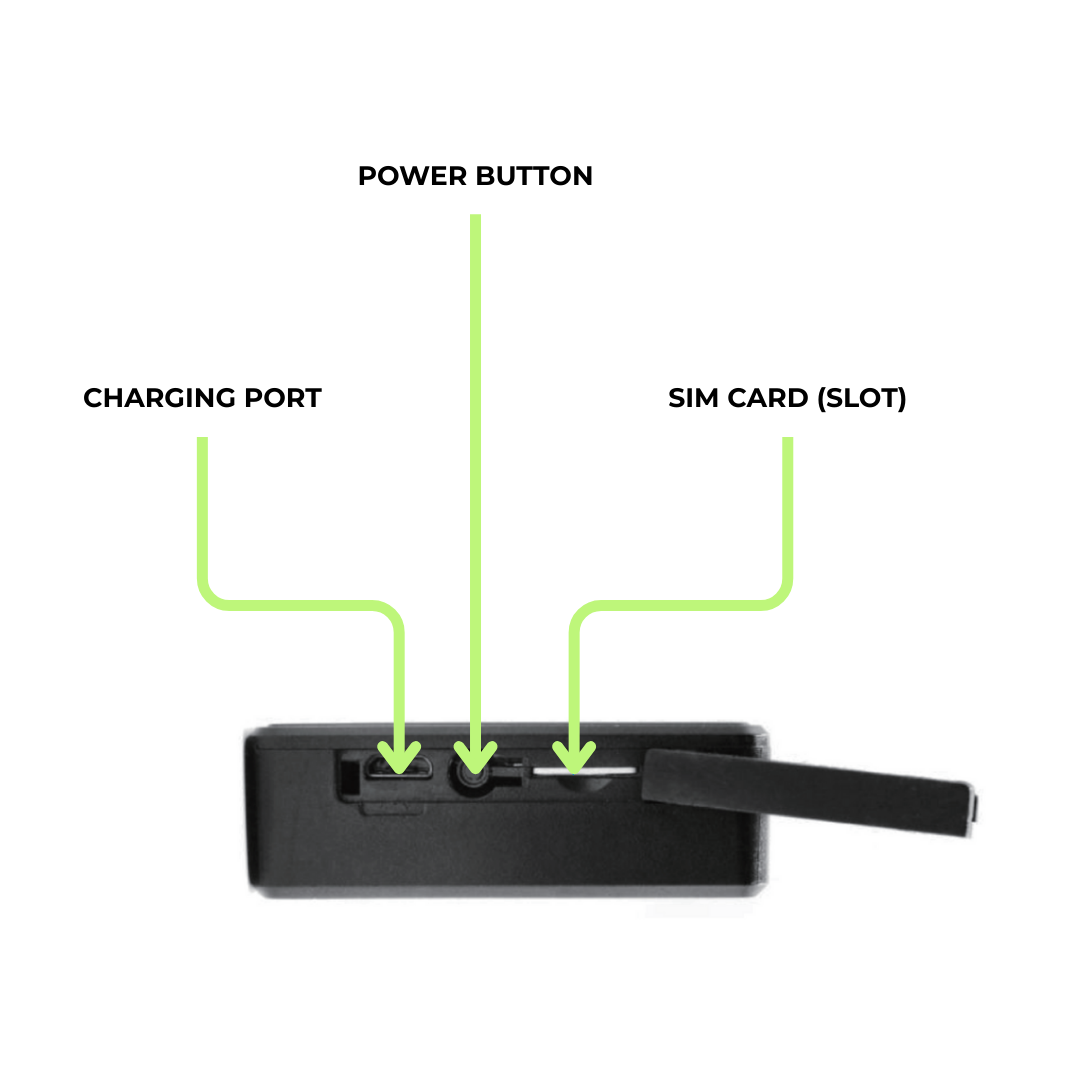
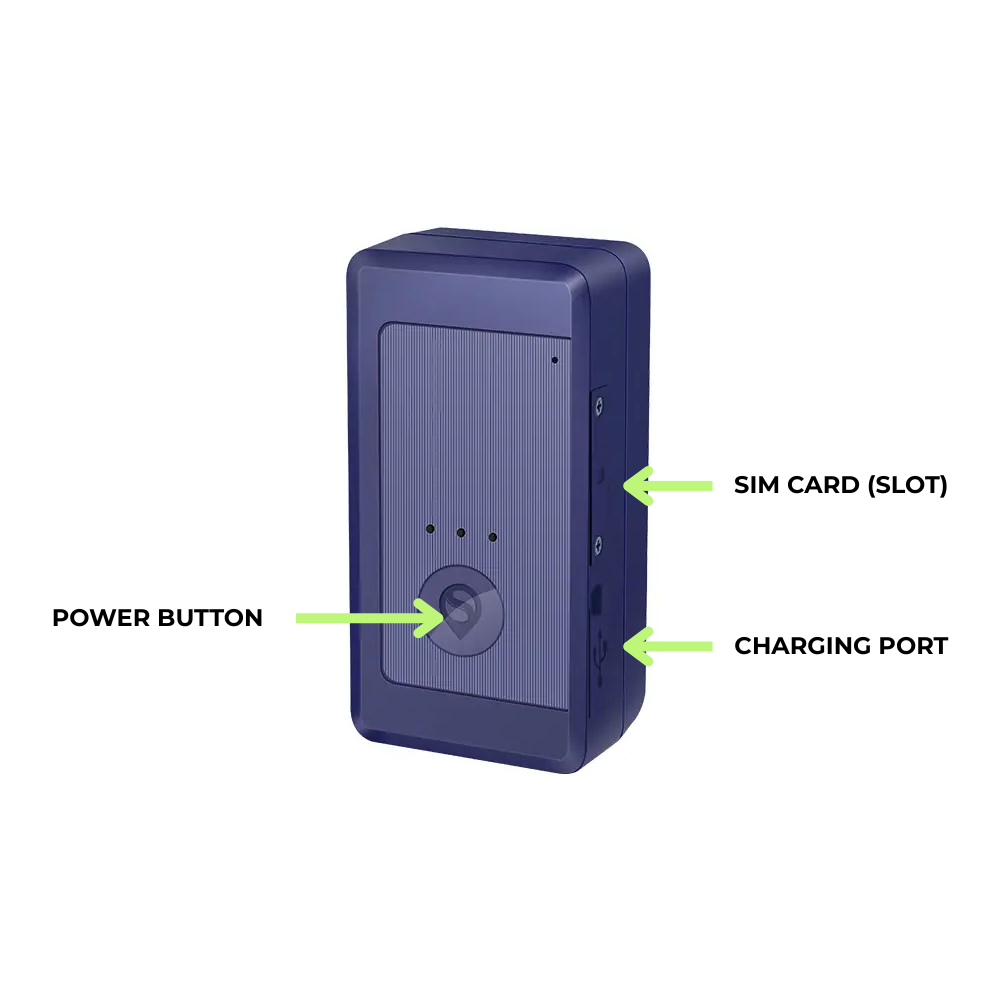
Restart Your GPS Tracker
As a last resort, you can restart your GPS tracker by pressing and holding the power button down for 10+ seconds. Switch the GPS tracker back on by pressing and holding the power button down for 3+ seconds.
When the tracker is powered on the light should flash (blue or yellow, depending on the model) and eventually remain solid. This means the tracker has successfully restarted and connected to the network.
It's normal for the light to go out after a while.